Ever joined a video call where half the room was cut out of the frame? It is a common problem in small meeting rooms, and regular webcams rarely solve it. The Altia Systems PanaCast 2 camera was built to fix exactly that with a wide 180° panoramic view. In this guide, you will learn how it works, what features it offers, and whether it still makes sense for your meeting space today.
What Is the Altia Systems PanaCast 2 Camera?
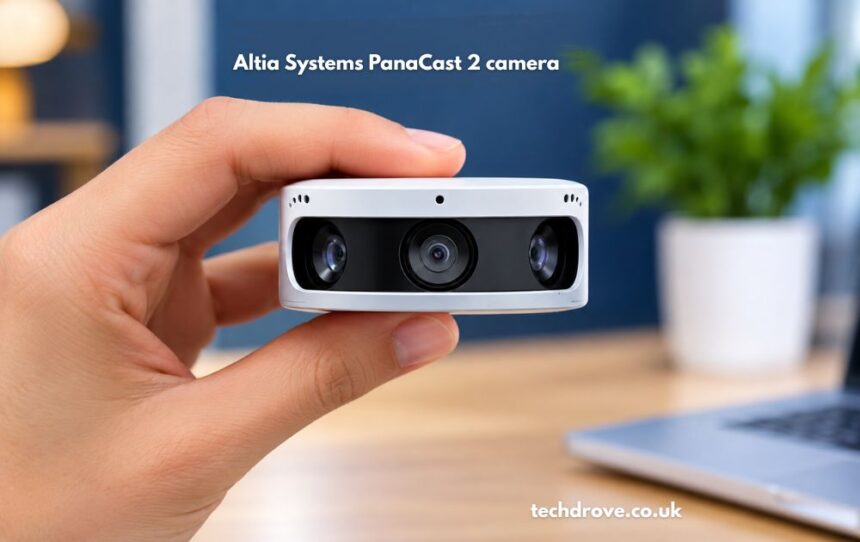
The PanaCast 2 is a plug-and-play USB video camera for huddle rooms and small meeting spaces. Altia Systems introduced it as the world’s first Panoramic-4K USB video camera, with a 180° wide and 54° tall field of view. Instead of one lens that pans and zooms, it uses several lenses to capture the whole room at once. Remote participants see everyone seated at the table, not just the person nearest the camera.
Why Panoramic Cameras Matter for Modern Meetings
In a hybrid meeting, the person on the screen often feels left out because they can only see part of the room. Narrow-angle webcams show two or three faces, while everyone else stays invisible. A panoramic camera fixes this by showing the whole table, so remote colleagues can read body language and follow side conversations. That shared view makes meetings feel more natural and helps remote participants contribute with more confidence.
The Story Behind Altia Systems and PanaCast
Altia Systems is a Cupertino-based company that focused on panoramic video long before wide-angle conferencing became common. It launched the PanaCast 2 in 2015 and later followed it with the PanaCast 2s, a higher-resolution version. The brand was eventually acquired by Jabra, which continues the PanaCast line today. That history matters if you are buying used or refurbished units, since most Altia-branded stock now comes from the resale market.
How the Three-Lens Design Works
The camera’s most striking feature is the three individual lenses set into its curved front. Each lens captures part of the scene, and the camera stitches the three images into one seamless panorama in real time. The result looks natural because the stitching avoids the fisheye bending that single wide-angle lenses create. People appear the way they do in person, even at the edges of the frame.
Design and Build Quality
The PanaCast 2 has a machined metal body that feels solid and looks professional on a table or wall. It is only slightly larger than a typical webcam, though noticeably deeper because of the three-lens array. The package usually includes the camera head, a short USB 3.0 cable, a power adapter, and a stand with a standard quarter-inch thread. The build suits permanent installations, and the wall mount keeps the camera out of the way.
Key Specifications at a Glance
Before buying, it helps to know the numbers. Here are the main specs worth checking:
- Field of view: 180° wide by 54° tall, with output up to 30 fps.
- Resolution: 3840 x 1080, matching the horizontal pixel count of 4K but with roughly half the vertical resolution.
- Connection: UVC video over USB 3.0 and 2.0.
- Sensors: Three separate lenses stitched in real time.
- Zoom: Up to 3x digital zoom with automatic pan and zoom.
- Mounting: Table stand or wall mount.
- Audio: None built in.
Main Features That Stand Out
The PanaCast 2 does more than capture a wide picture. Its software layer adds tools that make small rooms feel more professional. Key features include:
- Intelligent zoom: The camera can automatically frame the people in the room, mimicking what a PTZ camera does without any moving parts.
- Face detection: Face detection works at distances up to about 12 feet.
- Whiteboard feed: The camera can recognize an ordinary whiteboard and send it as a separate live content feed, though this needs an optional software licence.
- Room occupancy data: Paired with middleware, it can detect an empty room and release the booking, and it can report actual occupancy numbers.
- Virtual PTZ app: A downloadable app uses all three sensors to replicate PTZ-style framing without fisheye distortion.
Video Quality: What to Expect
The image is wide, sharp, and evenly balanced across the frame. Because the resolution is spread across a 180° view, individual faces are smaller than they would be on a narrow-angle 4K webcam. In a small meeting room, that trade-off works well, since everyone stays visible and in context. In a large room, faces at the far end may look small, which is where the higher-resolution PanaCast 2s makes more sense.
PanaCast Vision Software Explained
The camera works without any software, but PanaCast Vision unlocks its full potential. It gives you a live preview and lets you adjust framing, zoom behavior, and other settings while you watch the result. Without it, the base configuration utility offers no live preview, so changes become a guess-and-check process. If you plan to fine-tune the camera for a specific room, installing the software is well worth the few minutes it takes.
Compatibility With Meeting Platforms
You do not need special drivers to get started. The camera connects over USB to Windows and Mac and works with services such as Skype for Business, WebEx, Google Hangouts, GoToMeeting, Vidyo, and Zoom without any installs. Modern platforms like Microsoft Teams and Google Meet generally recognize it as a standard UVC camera too. Just select it as your video source in the app’s settings.
Audio: Pairing the Camera With a Speakerphone
The PanaCast 2 has no built-in speakers, and it is not designed to act as a full audio solution. This means you must add a separate speakerphone or conference microphone to complete your setup. A USB speakerphone placed in the center of the table is usually the simplest choice for a small room. Good audio matters as much as video, so budget for it when planning your meeting space.
Best Use Cases
The PanaCast 2 fits best in small to medium spaces where one wide shot beats a moving camera. Consider it for:
- Huddle rooms: Four to six people sitting close together.
- Small conference rooms: Ideal for small offices up to larger meeting rooms, without needing a PTZ camera.
- Hybrid team meetings: Remote colleagues see everyone, not just the speaker.
- Classrooms and training rooms: One camera covers the whole group.
- Room-booking setups: Occupancy detection helps free unused rooms.
Setup and Installation Tips
Getting started takes only a few minutes. Follow these steps for a smooth setup:
- Choose a position: Place the camera at the center of the table or mount it on the wall at eye level or slightly higher.
- Connect power and USB: Plug in the power adapter, then connect the USB 3.0 cable to your PC.
- Select the camera: Choose PanaCast 2 as the video source in your meeting app.
- Install the optional software: Add PanaCast Vision if you want live previews and framing controls.
- Test the frame: Have people sit in different seats and check that everyone is visible.
Pros and Cons
No camera is perfect, and the PanaCast 2 has a few clear trade-offs.
Pros
- Full-room view: The 180° panorama shows every participant at once.
- Natural look: Stitching avoids fisheye distortion.
- No moving parts: There is nothing to wear out or make noise.
- Easy setup: It works as a standard USB camera.
- Smart extras: Whiteboard and occupancy features add real value.
Cons
- No speakers: The camera has no speakers at all, unlike some bundled huddle-room systems.
- Fixed stand: The included table stand does not tilt.
- Slow reframing: Automatic zoom can be slow to adjust when someone enters or moves.
- Basic config tool: The base utility has no live preview.
PanaCast 2 vs PanaCast 2s
The PanaCast 2s is the step-up model built on the same three-lens hardware. It combines the PanaCast 2 device with computer vision software to deliver 5120 x 1440 pixels per frame at 30 fps, and it needs a separate Mac, PC, or Intel NUC to run the software. That extra resolution helps in bigger rooms and improves detail at the edges of the frame. If your space is small, the standard PanaCast 2 is usually enough and costs less.
Tips for Buying a Used PanaCast 2
Since the Altia-branded camera is mostly sold second-hand now, a little checking saves trouble later. Before you pay, review these points:
- Included accessories: Confirm the USB cable, power adapter, and stand or wall mount are in the box.
- Lens condition: Look for scratches or cracks on all three lenses.
- Seller warranty: Ask for a return window or short warranty.
- Model check: Make sure it is the PanaCast 2, not an older or different model.
- Test on arrival: Run a full test call in your meeting app right away.
Is It Worth Buying Today?
For a small meeting room on a budget, the PanaCast 2 is still a smart pick, especially on the used market. It delivers a wide, natural view that many modern webcams cannot match, and it needs no complicated setup. However, you will need a separate speakerphone for audio, and newer Jabra PanaCast models offer updated features and support. Weigh your room size, budget, and audio needs before deciding.
Conclusion
The Altia Systems PanaCast 2 camera solved a real problem: getting everyone in the room onto the screen without a moving camera. Its three-lens panorama, simple USB connection, and smart framing tools still hold up well for huddle rooms and small meeting spaces. Pair it with a good speakerphone, and it remains a practical, affordable upgrade for hybrid meetings.
FAQs about altia systems panacast 2 camera
What is the Altia Systems PanaCast 2 camera?
It is a plug-and-play USB panoramic video camera with three lenses and a 180° field of view.
Does the PanaCast 2 have a microphone or speaker?
No, it has no speakers, so you need a separate audio device.
Does the PanaCast 2 work with Zoom and Microsoft Teams?
Yes, it works as a standard USB camera with Zoom, Teams, and other meeting apps.
What is the resolution of the PanaCast 2?
It outputs 3840 x 1080 pixels at up to 30 frames per second.
Who owns PanaCast now?
Jabra acquired Altia Systems and continues the PanaCast product line.
Is the PanaCast 2 good for large conference rooms?
It suits small to medium rooms best, while larger rooms may need the PanaCast 2s.